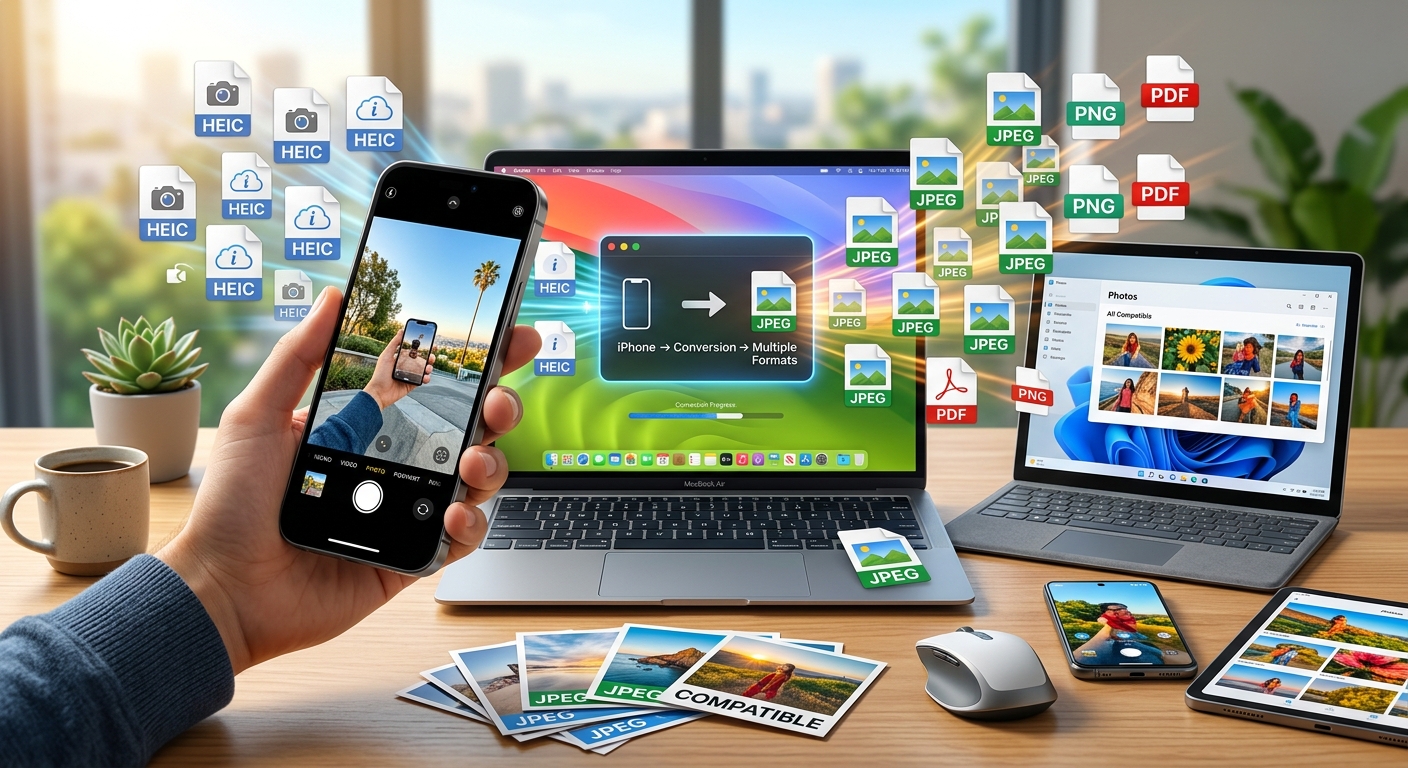
You snapped the perfect photo on your iPhone. You sent it to a friend on Windows, or tried uploading it to an online form. Then came the error message: "File format not supported." Suddenly your photo is completely useless. It is not a broken file. It is a HEIC file, and it has been Apple's default since iOS 11. Understanding why, and knowing how to fix it, takes just a few minutes.
The Short Version
- HEIC is Apple's default camera format, chosen for smaller file sizes without quality loss.
- Most Windows PCs and non-Apple platforms cannot open HEIC files without extra steps.
- Changing your iPhone camera setting to "Most Compatible" forces JPG output going forward.
- Mac users can export HEIC photos as JPG straight from the Photos or Preview app.
- For photos already on your device, an online converter is the fastest path to a file that works everywhere.
The Moment the Format Problem Hits You
It usually happens at the worst time. You are trying to attach a photo to an email, upload a headshot to a job portal, or share a snapshot in a group chat with Android users. The file refuses to load. Or it loads but shows a blank thumbnail. Or Windows Photos throws an error that makes no sense to you.
You did nothing wrong. Your phone is working exactly as designed. Apple switched its default photo format to HEIC in 2017 with iOS 11. At the time, the rest of the world had not caught up. Years later, compatibility gaps still exist. The good news is that fixing this is genuinely simple. You have three main routes, and the right one depends on whether you want to prevent the problem going forward, handle files one at a time, or convert a whole library in one pass.
What HEIC Is and Why Apple Made It the Default
HEIC stands for High Efficiency Image Container. It is built on top of HEIF, the High Efficiency Image File Format. Apple adopted it because the compression is significantly better than JPG. A HEIC photo can be up to half the size of an equivalent JPG file, at the same or better visual quality.
That matters when you are carrying thousands of photos on a device with limited storage. Smaller files mean more photos fit on your phone, backups finish faster, and iCloud storage costs stay lower. Apple was not being stubborn with this choice. It was a smart engineering decision.
The HEIF standard was developed by the Moving Picture Experts Group, the same body behind the MP4 video format. More technical background lives in Wikipedia's HEIF format overview, which covers the specification in full. The standard is modern and well-defined. The problem is not the format itself. The problem is adoption.
JPG has been around since the early 1990s and is understood by practically every device, browser, and app on the planet. HEIC is newer. Windows 10 and 11 can open HEIC files, but only after installing a specific codec from the Microsoft Store, which most people have never done. Android has inconsistent support. Web upload forms often reject HEIC entirely.
Changing Your iPhone Camera Format for Future Shots
If you want every photo you take from now on to be a standard JPG, you can switch your camera format in iPhone settings. This does not convert anything you have already taken. It only affects new shots.
Open the Settings app. Scroll down and tap Camera. Tap Formats. You will see two options: High Efficiency and Most Compatible. High Efficiency means HEIC. Most Compatible means JPG.
Choosing Most Compatible gives you JPG files that open everywhere without friction. The tradeoff is larger file sizes, meaning photos take up more space on your device and in iCloud. For most people, that tradeoff is worth making. If storage is tight, or you mostly share photos between Apple devices where HEIC works fine, staying on High Efficiency still makes sense. You can switch back and forth depending on what you are shooting and who you plan to share with.
How Mac's Built-In Tools Handle the Conversion
If you are on a Mac and need to convert a handful of photos, no third-party software is required. Apple's own apps handle it cleanly.
In the Photos app, select the photos you want to convert. Go to File, then Export, then Export Photos. In the dialog that appears, change the Photo Kind from HEIC to JPEG. Set your quality preference, choose a destination folder, and click Export. Your JPG files land exactly where you chose.
Preview works just as well for single files or small batches. Open the HEIC file in Preview, go to File, then Export, and select JPEG from the format dropdown. Adjust the quality slider if needed. Save the file. The resulting JPG is ready to send, upload, or share.
These built-in options are reliable and free. They are the right choice if you are converting a small number of files and you have time to go through the manual steps.
The Fastest Fix When You Already Have a Library of HEIC Files
Manually exporting photos one by one through Preview gets old fast. If you have dozens or hundreds of HEIC files that need to become JPGs, you need something that handles them all at once.
This is where an online converter earns its place. You drag in your files, choose your output format, and download the results. No software to install. No learning curve. It works on any operating system, including Windows, where Apple's built-in export tools are obviously not available.
For anyone stuck with a stack of HEIC files they cannot use, a straightforward HEIC to JPG converter handles the job fast, processes multiple files at once, and delivers clean output you can use immediately without fussing through app menus.
This kind of tool is especially useful in a few common situations:
- You backed up your iPhone to a Windows PC and discovered every photo is HEIC.
- A client or employer needs JPG files and you do not have time to export them one by one.
- You are uploading product photos to an e-commerce platform that rejects HEIC.
- A form only accepts JPG or PNG as attachment types.
- You are sharing a photo album with family members on Android or older devices.
The conversion itself is practically lossless for everyday use. JPG does use compression, but at high quality settings, the visible difference compared to HEIC is negligible. For family photos, social posts, or document attachments, the output is perfectly fine.
What About PNG and Other Formats?
JPG is the right output for the vast majority of use cases. It is universally accepted, compact, and well-suited for photographs.
PNG makes more sense for screenshots, graphics with text, or images where you need a transparent background. PNG files are larger than JPG for photographic content, so converting every HEIC photo to PNG is rarely worth it. WebP is a modern format with strong browser support, and it is a good choice if you are preparing images specifically for a website. For everyday sharing and compatibility across platforms, JPG remains the simplest and safest answer.
Your Photos Work on Any Device from Here On
The HEIC format is technically superior to JPG. Smaller files, excellent quality, efficient use of your storage. Apple made a well-reasoned engineering decision when it became the default. The challenge is that "technically better" and "universally compatible" are two different things, and for most iPhone users, compatibility is what matters most day to day.
Changing your camera setting to Most Compatible means every photo you take going forward will open on any device or platform without complaint. Mac's export tools cover the occasional file when you need to convert something already saved. For anything older, or any situation where you need results without hunting through system menus, an online converter closes the gap in seconds.
You do not need to understand file format specifications or compression algorithms to solve this problem. You just need to know where the setting is, or where to drop your files. Now you know both.