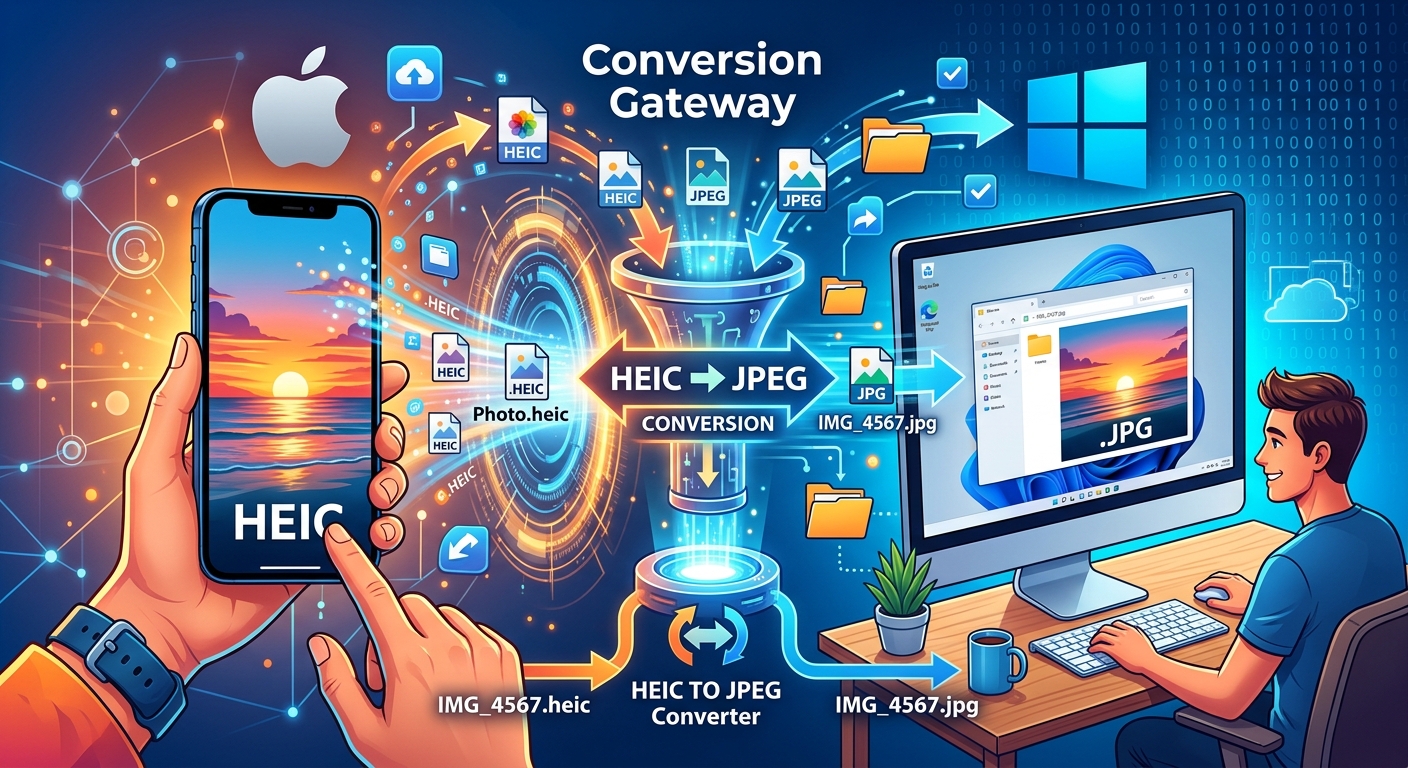
You snap a great photo on your iPhone and send it to a coworker. They message back saying they can't open it. The file sits in their downloads folder like a locked box. No obvious error explains the problem. No fix presents itself. This is the HEIC compatibility gap, and it catches people off guard every day.
HEIC photos look great on your iPhone but won't open natively on Windows, causing frustration for anyone you share them with.
- Changing one setting in your iPhone camera stops the problem from happening with any new photos you take.
- If you have a Mac, the built-in Photos app can export your existing HEIC files as JPGs without any extra software.
- A browser-based converter handles old files or batches in seconds, with nothing to install on any device.
Why Windows Can't Open Your iPhone Photos
Apple switched iPhones to HEIC as the default photo format starting with iOS 11. HEIC stands for High Efficiency Image Container. The format delivers impressive results: a HEIC file typically takes up about half the storage space of an equivalent JPG while keeping the same visual quality. For a phone with limited storage, that tradeoff is genuinely valuable.
The trouble arrives when those photos leave Apple's ecosystem. Windows does not support HEIC natively. A Windows user who receives your photo might see a blank thumbnail, a generic file icon, or a prompt asking them to install a codec from the Microsoft Store. That codec costs money, and most people aren't going to pay for it just to open one photo. Apple's own HEIF format documentation confirms that the format was built primarily for Apple devices, with cross-platform compatibility as a secondary concern.
JPG, by contrast, opens everywhere. Every operating system, browser, and photo app built in the last twenty years handles JPG without any setup. That's the gap you're bridging when you convert your files before sharing.
Fix One: Change Your Camera Settings Before You Shoot
This is the most efficient long-term fix if you share photos with Windows users regularly. You're not converting anything after the fact. You're telling your iPhone to save every new photo in a format that opens everywhere from the moment it's taken.
Follow these steps to make the change:
- Open the Settings app on your iPhone.
- Scroll down and tap Camera.
- Tap Formats near the top of the screen.
- Select Most Compatible instead of High Efficiency.
Every photo you take after that change saves as a JPG. The file will open on any Windows PC without a second thought. The tradeoff is storage. Your photos will take up roughly twice the space on your iPhone. That matters more on older devices with 64 GB of storage than it does on a newer 256 GB model. Only you can judge whether that tradeoff makes sense for how you use your phone.
There's also a subtler option that doesn't change how photos are stored. Under Settings > Photos, look for the section labeled Transfer to Mac or PC. Set that to Automatic. With this enabled, when you transfer photos to a Windows machine via USB or airdrop, the iPhone converts them to JPG during the transfer itself. The original HEIC file stays on your phone. The copy that lands on the Windows device is already a JPG.
Fix Two: Export Your Photos Through Mac's Photos App
If you're on a Mac and have a folder of HEIC files you need to share, the Photos app handles conversion without any third-party software. The option is a little buried, but once you find it, the process takes about a minute.
Open Photos and select the images you want to convert. Hold Command and click to select multiple files at once. Then go to File > Export > Export [number] Photos. A dialog box appears. Set the Kind dropdown to JPEG. You can also adjust image quality and choose whether to include location metadata. Hit Export, pick a destination folder, and your files land there as JPGs.
This approach works well for occasional use. If you find yourself doing it weekly, the browser-based option in the next section will save you time.
HEIC vs. JPG: What Changes When You Convert
| Factor | HEIC | JPG |
|---|---|---|
| File size | Roughly half the size of JPG at same quality | Larger, typically 2x a comparable HEIC |
| Windows support | Requires a paid codec or third-party app | Opens natively in every Windows version |
| Browser compatibility | Inconsistent, blocked on many platforms | Supported universally |
| Email and upload portals | Often rejected or displayed as broken | Accepted by virtually every platform |
| Photo editing software | Supported in newer apps, not older ones | Supported across all editing tools |
| Best for | Storing photos on your iPhone | Sharing across any device or platform |
Fix Three: Convert Files You've Already Taken
Camera settings only affect photos going forward. Your existing camera roll stays in HEIC. If you need to share older photos right now, you need a conversion method that works on files already saved.
Downloading and installing a desktop app just to convert a handful of photos is more effort than the task deserves. Many free converter apps bundle unwanted extras: toolbar installs, subscription prompts, or account signups just to download your own converted file. None of that is necessary.
A browser-based approach skips all of it. HEIC to JPG conversion runs entirely in your browser, with no software to install and no account to create. You drag your files into the converter, wait a few seconds, and download the results as JPGs. It works on Mac, Windows, and even directly from an iPhone. Files are processed locally or discarded after a short window, so you're not leaving your photos on a server indefinitely.
This option fits neatly into a few specific situations:
- You need to convert a few photos from your archive and don't want to change your camera settings permanently.
- You're working on a borrowed or work computer where installing software isn't an option.
- You have a large batch of files and need them all converted at once rather than exporting individually through Photos.
Choosing the Right Fix for Your Situation
These three options don't cancel each other out. Many people end up using all three depending on the context. Someone might change their camera settings for daily sharing, use the Photos export for special occasions like a vacation album, and reach for the browser tool whenever an older photo needs to go out in an email.
A detail worth knowing: switching your iPhone to Most Compatible mode in camera settings does not convert or delete your existing HEIC photos. Those files stay exactly as they are in your camera roll. Only photos taken after the setting change will be saved as JPGs. If you want to share anything from before you made that change, you'll still need to convert it separately.
The Mac Photos method works well if you're already organized in that app and only need to handle a handful of images. The browser converter is faster if you have more than five or six files, or if you want to handle the task without opening any other app at all.
Small Habits That Prevent the Problem From Coming Back
Solving this once is straightforward. The goal after that is making sure it doesn't keep catching you off guard. A few habits help:
- Before attaching a photo to an email or message, glance at the file extension. A .heic file needs to be converted before it reaches a Windows inbox.
- If you use iCloud Photos and work primarily on a Mac, enable the option to download originals to your Mac. That way a local copy is always ready to export or convert without waiting for downloads.
- Keep your conversion tool bookmarked so it's one click away rather than something you search for each time the need arises.
None of this takes technical expertise. It's really just a matter of knowing what format the other person's device expects, and making the adjustment before you hit send.
Photos That Open on the First Try, Every Time
HEIC is a genuinely good format. Apple made a reasonable call adopting it. Storing high-quality photos at roughly half the file size of JPG is a real benefit for anyone managing storage on an iPhone. The friction appears only at the edges, specifically when photos move outside the Apple ecosystem and land on devices that weren't built with HEIC in mind.
The three fixes covered here address that friction at every stage: before a photo is taken, right after it's exported from a Mac, and for any file already sitting in your camera roll. Each one takes less than two minutes once you know the steps. The barrier isn't technical complexity. It's just knowing these options exist.
Your photos deserve to arrive looking exactly the way they were taken, on any device they land on.